
Introduction
LED display flickering is one of the most common technical issues faced by users of digital signage, video walls, and stage LED screens. Although occasional flickers appear to be harmless, regular or random flashing can lead to reduced visibility and impact on the viewer experience and brand image—especially in high-traffic places such as shopping malls, stadiums, and transportation hubs.
In this guide, we’ll explain what screen flickering means, explore the specific reasons behind LED screen flickering, and share practical steps to diagnose and solve the problem quickly and efficiently.
What Is Screen Flickering?
Screen flickering is the quick and frequent change of the screen brightness or color that occurs because of unsteady input signals, power fluctuations or software configuration errors. In smartphones or monitors, flickering could be due to issues with display drivers or software updates.
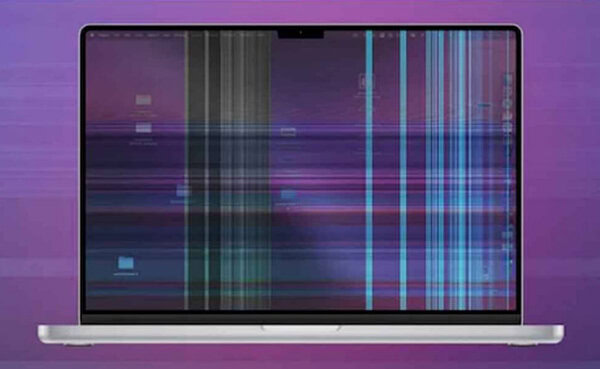
However, for LED displays, the causes are typically more technical and different from LCD or OLED screens. Unlike LCD or OLED screens, LED displays are made of thousands of tiny light-emitting diodes, grouped into modules, and controlled by external systems. This modularity introduces new points of failure, including power modules, data cables, scan controllers, and driver ICs.
For instance, a P3.91 outdoor LED screen measuring 5m x 3m contains over 1 million individual LEDs. If just 0.1% of the driver ICs misbehave, the result may be obvious flickering across entire sections of the display.
Top 5 Causes of LED Display Flickering
The most frequent technical reasons behind LED screen flickering based on real-world service cases are as follows:
Unstable Power Supply (40% of reported issues)
Power is the foundation of LED screen performance. If your voltage input is unstable or grounding is poor, the system may not deliver consistent current to the modules. This is especially common in outdoor installations where long cable runs or improper power separation can introduce noise.
- Voltage below 4.6V for a 5V-rated module can trigger visible flicker.
- Power ripple greater than 100mV on a DC line often causes inconsistent brightness.
Fix: Always use certified LED power supplies (like Meanwell or G-energy) and keep each supply within its load range (ideally 70-85% of capacity). Isolate power from signal cables where possible.
Signal Transmission Failures
If the control signal is lost or degraded between the sending card and LED modules, flickering can occur randomly or in patterns. Causes include:
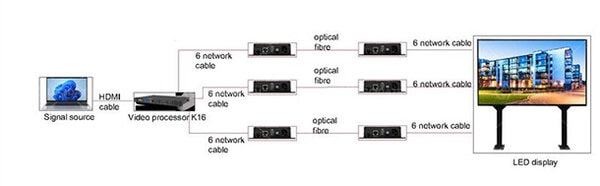
- Long CAT5/CAT6 cable runs without signal amplifier
- Poor quality connectors or cables running close to high-voltage lines
- Improper grounding or electromagnetic interference(EMI)
Fix: Use high-quality shielded twisted-pair cables. For distances beyond 30 meters, use fiber optics or install signal repeaters. Ensure cables are properly terminated and shielded from EMI sources.
Inadequate Refresh Rate or Scan Mode Mismatch
Refresh rate is the number of times your display redraws its image per second. A refresh rate below 1000Hz can produce visible flicker, especially when the screen is recorded on camera (e.g., at events).
- Standard flicker-free refresh rate: ≥ 1920Hz for indoor applications, ≥ 3840Hz for broadcast use.
- Scan mode mismatch: e.g., using a 1/16 scan receiving card with 1/8 scan modules can cause scanning artifacts and flickering.
Fix: Adjust refresh rate in your LED control software (e.g., NovaLCT, Colorlight). Make sure the receiving card matches the scan mode of your modules. Use PWM-based drivers to reduce eye-visible flicker.
Faulty LED Modules or Driver ICs
A single defective module can make an entire section flicker, especially if the problem lies in the input port or data cascade line.
- Flicker in just one row or column typically points to a driver IC.
- Flicker in a larger block (e.g., 64×64 pixels) may relate to data input or module-to-module connection.
Fix: Swap the module to another position. Flickering that follows the module suggests it is the most likely cause. Replace modules which show overheating, discoloration or physical damage.
Outdated Control System or Firmware
Changing resolution or loading new content can cause flickering especially with older sending cards, receiver cards, or outdated software configurations.
- Some flickers are only visible during gray scale transitions.
- Others happen when the system is unable to match brightness levels between modules.
Fix: Update your LED controller firmware. Reset and reconfigure brightness, gamma, and refresh settings. Ensure that the software is in sync with your hardware version, especially if you’ve upgraded modules.
Case Study: Outdoor P6 Billboard LED Display Flickering at Night
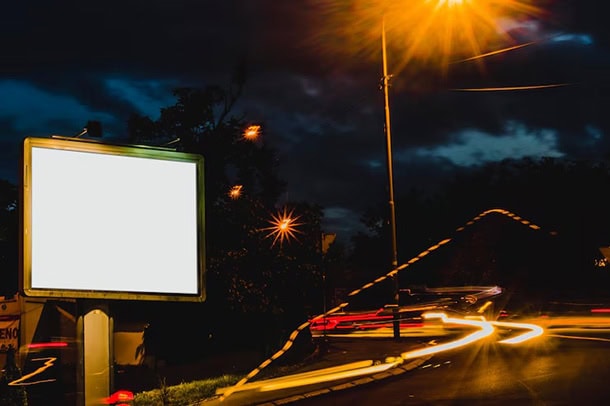
A retail store in the Philippines reported horizontal flickering lines across their 5×3m P6 outdoor LED billboard, especially visible at night. The screen was installed in a high-humidity environment and had been running continuously for months.
- Diagnosis:
Technicians checked the voltage output from the power supply and found a drop to 4.6V—below the standard 5V required by the LED modules. The cooling fans were also clogged with dust, causing internal overheating.
- Solution:
The power supply units were replaced with a more stable brand, and fans were cleaned and repositioned to improve airflow. The flickering stopped completely, and the display returned to normal.
How to Fix LED Display Flickering: Step-by-Step
To solve LED display flickering, follow this troubleshooting path:
- Power Check–Use a multimeter to confirm 4.8–2V output at the module terminals for a power check.
- Signal Path Test–Disconnect and reconnectsignal cables; use a spare receiving card if available.
- Refresh Rate Settings–Ensure that your controller software is set to at least 1920Hz.
- Module Swap–Test the suspected modules by changing positions.
- Control System Update–Update firmware and reload screen configuration files.
Still flickering? It might be a good idea to get in touch with your LED screen provider or control system supplier for diagnostic purposes.
How to Prevent Screen Flickering in LED Displays
Prevention is always better than cure. Here are some long-term steps to prevent LED screen flickering:
- Reliable brands should be used for power supplies and controller cards.
- For camera facing displays, use LED modules with a refresh rate of at least 1920Hz, preferably 3840Hz.
- Do not use the same power lines with heavy machinery or lighting systems.
- Clean and inspect signal and power cables every 3–6 months.
- Perform firmware updates regularly and save configuration files after major changes.
LED Display Flickering vs. Common Screen Flickering
Flickering is a common issue in both but LED display flickering is quite different:
| Feature | LED Display | Laptop/TV/Monitor |
| Technology | Modular LED + drivers | LCD/OLED panel |
| Causes | Power, signal, scan mode | GPU drivers, refresh mismatch |
| Fixes | Hardware/module swap | Software update, cable check |
| Use Case | Outdoor, signage, events | Personal/commercial use |
These differences will assist you to solve the problem in a faster way.
Repair or Replace? What to Do When LED Display Flickering Won’t Stop
If you have eliminated power, signal and software problems and the flickering still persists, you may have to replace hardware.
So you can choose repair if:
- Less than 10% of modules are affected.
- The components are still within the warranty period.
- Screen is under 5 years old
You can choose replace if:
- Modules show aging or color decay
- Control system is outdated or incompatible
- Repairs are more expensive than replacement cost
Conclusion
LED display flickering can affect performance, viewer satisfaction, and brand impact. Most flickering problems are easy to solve with a structured approach when the problem is caused by power instability, poor cabling, or outdated configurations.
Quick and informed action is always the key to restore the screen’s performance in no time, from checking your voltage levels to upgrading your control system. And if you’re not sure where to start, don’t worry—we’re here to help. Contact our team for expert guidance if you need remote diagnostics, replacement parts, or full LED screen support.
FAQs
1.Why is my LED screen flickering only sometimes?
Intermittent flickering is usually a sign of loose cables or temperature-related issues in the power or signal system.
2.Can humidity cause flickering?
Yes, moisture can cause damage to the internal circuits or connectors which can result in flickering which can be either temporary or permanent.
3.What refresh rate should I use to avoid flicker?
1920Hz is the minimum refresh rate recommended for good visual performance, especially for displays on camera.
4.Will flickering damage my LED screen?
Prolonged flickering can strain driver ICs or power components, potentially leading to permanent damage.
Related Articles You May Like:
How To Repair A Transparent LED Screen
How To Reduce My LED Screen Power Consumption?
What You Need to Know About LED Screen Maintenance
Why Is Proper Heat Dissipation Crucial For LED Display Performance?